Showing posts with label Computer. Show all posts

Thursday, February 8, 2018

How to clean laptop screen with homemade products


With usage, exposure to the environment and our habits (eating in front of the computer etc.), it's natural that our laptop's screen and keyboard become dirty with dust and especially with spots that are sometimes very difficult to remove. Of course, in specialty stores you can get cleaning products, but at home we also have cheaper allies.

Steps to follow:

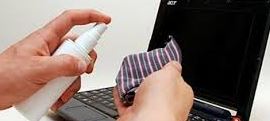
1. Dissolve a portion of isopropyl alcohol (applied to the wound) with one of water, preferably drunk, in the same section, place the mixture in a small sprayer to clean.

2. Cover the keyboard so it does not splash the mixed drops that can damage it

3. Choose a cotton fabric that is not loose. It could be an old shirt or cleaning cloth that you know works effectively. Apply a mixture slightly to the fabric

4. Clean the screen with a cloth moistened in a circular motion and clockwise, you should do it gently but firmly to remove the deepest and oldest stain.

5. Repeat as many procedures as necessary to make your screen perfect. Remember to not soak the cloth so you do not have to deal with the excess water that falls towards your keyboard

6. With this simple step you will be able to leave your laptop screen clean and new

Tips
Do not use paper towels because they release fibers that will remain on your laptop screen
Perform cleaning with the laptop turned off and completely disconnected to avoid accidents


Do not put your finger on the screen while cleaning, so your fingerprint will not be marked

How to transfer audio from PC to TV


While the sound level on your laptop or desktop PC may be high, the overall range of sound on TV is usually much higher. To take advantage of this sound, connect the computer directly to your TV, but if you do, you must have a TV and a computer with a slot for an HDMI cable.

You will need:
 HDMI cable

Steps to follow:

1. Turn off the computer. The equipment must be completely turned off when connecting the cable.

2. Find an HDMI slot on your computer. In the tower unit, there is a rear. On laptops, slots are more likely to be next to a USB slot.

3. Insert one end of the HDMI cable into the HDMI slot on the computer. Place the second HDMI slot on the back of your TV.

4. Insert the HDMI cable into the HDMI cable slot on the TV.

5.Use your remote control to change the TV channel to "HDMI" (the method to do this depends on the right model, see the manual or contact the TV manufacturer to see detailed information).

6. Turn on the computer. Now you can see the pictures that are on your computer, and listen to the sounds that accompany them, on the television.

Tips
If your computer has only one DVI port, purchase a DVI cable to HDMI. This lets you perform the same process, but you must connect the end of the DVI cable to the DVI port on your computer, and the HDMI edge to the TV.

How to choose a good laptop


How to choose a good laptop - we let you know
The world of computer science can be very complicated if we are not involved in this problem, therefore often when choosing a laptop we have difficulties if no one in our neighborhood can help us. Things like RAM, processor or hard drive may sound unfamiliar, but at the same time they are very important to choose a good laptop.

What to keep in mind when buying a laptop?
Before we start looking for a computer, we need to be clear about one thing: what do we want? That is, what will we do with it? Do we want laptops to play video games? Do we want it to work? Or do we want it, maybe, just to enter from time to time in it? Depending on this question, we should look at certain aspects of the laptop:
  • RAM memory: this is the main memory of the computer, where read and write operations are performed. If for example, we want a laptop played, it should have enough RAM, especially if we intend to have some games on the computer. The excellent RAM for this is between 8 and 16 GB. If all we want to do is work on the computer and things that do not require good graphics power, with a minimum of 4 GB will be fine.
  • Processor: This is very basic, as it fights more GHz (gigahertz) you have, the faster your computer will go. This will be very important if we want to play with computers or use heavy programs like Illustrator, InDesign or Photoshop.
  • Hard disk: the hard disk is the computer's internal memory, that is, the total capacity to store everything on the laptop. Depending on what we want for a computer, we need more or less capacity, although today most laptops have at least 320 GB. However, at the moment this truth is not a big deal, because buying an external hard drive can have extra storage on our computer.
  • Graphics card: graphics card allows us to watch videos and graphics with good quality. That is why, if this is our interest, we must ensure that our laptops have a good integrated graphics card, like ATI or Nvidia.
  • HDMI: If you want to connect your computer to television to watch movies, series or even Netflix, you should make sure that your preferred laptop has an HDMI connection port.
  • USB 3.0: USB port is also a key when choosing a good laptop. The best thing is you have at least two USB ports. If, besides that, there are some USB 3.0 ports, better than better ones, because what you transfer will run faster.

Another aspect to consider when buying a laptop
Another fundamental aspect of choosing a good laptop, albeit slightly more external or more secondary, is as follows:
  • Operating system: the operating system is another aspect to consider when choosing a good laptop. The main ones, nowadays, are Mac and Windows. Each has its own advantages and disadvantages. For example, Macs have that advantage, maybe, you will not get a virus on your computer, while otherwise there is a program or a video game that is unique to Windows. Windows, on the other hand, is much cheaper and has more programs compatible with this operating system than Mac. However, it often gives a lot of mistakes and if you do not have a good antivirus, most likely you will be exposed to viruses and Trojans.
  • Screen: screen size is another fundamental aspect. Depending on what you want for your computer, you need a screen that is more or less large. However, the average size is 13 inches.
  • Autonomy: Battery life is also important, especially if we want to take the laptop somewhere and work with it. Today, many laptops have an option called "energy saving". Thanks to this, the battery can last longer.
  • Weighing: as in the previous section, if you plan to bring your laptop with you, this one weight will be important if you do not want to end up with a contracture behind.
  • The design: like it or not, laptop display is also important. There are some very striking colors and charming designs. While it is very important in this section to highlight the keyboard, at the end of the day, you will end up with a key and a mouse. Find that convinces you both for your keyboard and your looks so you can work comfortably with it.

How to choose a laptop?
After looking at the previous section, we advise you to keep a record of what you want and think about what can be more calculated. Think about both the quality and the economic side.

What is the best laptop?
This is a difficult problem to solve, because everything will depend on what is used for and on someone's personal opinion, is not everyone happy with a brand or agreeing to a certain opinion with others. However, here are some standard parameters to find out how to choose a good laptop.
  • RAM memory: between 4 and 8 GB.
  • Processor: between 3.5 and 4 GHz.
  • Hard disk: about 320 GB.
  • Graphics card: between 2 and 4 GB.
  • HDMI: available
  • USB: at least 2.
  • Display: about 13 inches.
Everything else, that is, operating system, autonomy, weight and design


How to turn your Android smartphone into a computer mouse

If you are tired of using your laptop's trackpad but you do not have an extra mouse, or you run out of mouse batteries that you normally use with your computer, do not despair. There's an ingenious solution that can get you out of trouble: what if you're using your smartphone mouse? Of course, this will be a wireless mouse.

Steps to follow:

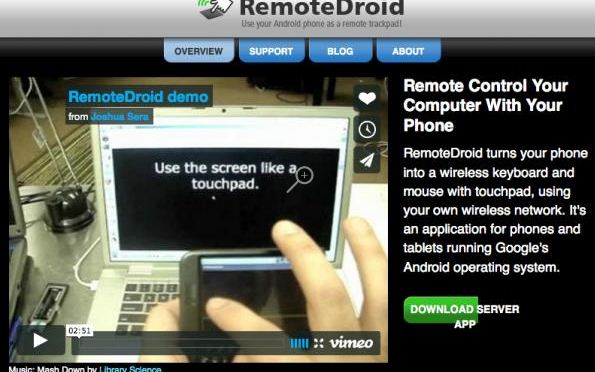
1.In order for your Android device to be a mouse for your computer, you need to download a specific application, RemoteDroid. To do this, go to the Play Store, search for "RemoteDroid" (without the quotes) and follow the necessary steps to download and install it on a mobile device. Do not open first


2. After installing RemoteDroid on your smartphone, you also need to install a desktop version on your computer, so that your phone and computer can communicate and understand what your new relationship is. Visit www.remotedroid.net and download the program by clicking the button marked "Download Server App". You already have both devices with everything they need.


3.On the computer, extract the zip file you have downloaded by double clicking on it. Next, go to the created folder and locate the RemoteDroidServer.jar file. Double-click to start the server application. This will open a window that will show us a series of data: it designates an IP address


4. Go back to your Android device and search the RemoteDroid app in the app list. Open it by pressing it. You will see an empty space that says "IP address below". Copy the IP address number you copied when launching the app on your computer and click the "Connect" button. Wait a few seconds until the connection is established.


5. When your PC and smartphone are connected, you will see the phone screen as an interface that will tell you how you can use the phone to control the computer. In addition to the space to be used as a Touchpad, you will have the right and left mouse buttons equivalent. The app also allows you to open the keyboard and write directly from the device.


Friday, January 6, 2017

How to clean a laptop screen with a homemade tool

                                                 How to clean a laptop screen with a homemade tool

The laptop screen tends to accumulate dust, food particles and other debris begin to look unpleasant after a while. It is very important to use soft materials for cleaning laptop screen, because the surface of the LCD can be easily damaged. Use a microfiber cloth and a simple solution consists of water and vinegar if you do not want to buy a special screen-cleaning.

Method 1
Clean the screen with a microfiber cloth:
1.Turn off computer, unplug the power adapter and remove the battery. Cleaning the screen can cause permanent damage, so better make sure and turn everything into off. Or to put it in suspension.

2.Get microfiber tissue. This network is made of a type of fabric that does not produce the fiber, in addition to being very soft. If using a towel, clothing or other fabric, could leave an additional residue on the screen or scratched.
Also avoid using paper products. Never use napkins, paper towels, toilet paper or other products made of paper, because they can scratch and damage the screen.
A very handy microfiber cloth for cleaning all types of screens and lenses.

3. Use a cloth to wipe the screen gently. Gentle cleaning without applying a lot of pressure, because if you press too hard, it could damage the screen.
When making a gentle circular motion, you can clean up some of the most difficult places.
Do not rub the screen, because it can cause burns pixels.

4.Clean up order the laptop with a simple cleaning solution. If the area around the screen is dirty, can use homemade cleaning solution and paper towels. Just be careful not to allow contact with the screen.

Method 2
Use a cleaning solution:
1.Turn off computer, unplug the power adapter and remove the battery. As in this method you use a liquid to clean the screen, it is important to turn off the computer and unplug the adapter

2.Prepare  mild cleaning solution. The ideal solution is a combination of distilled water, no chemicals and does not damage the screen. If you need a more thorough cleaning, also can use a uniform mixture of white vinegar and distilled water.
Be sure to use plain white vinegar and apple cider vinegar no or other types.
Distilled water is better than Gripo water because there are no chemicals.
Manufacturers no longer recommend the use of cleaners containing alcohol, ammonia or strong solvent to clean the LCD screen.

3.Apply solution into a small spray bottle. Type spray bottle handy to get a fine mist, like a perfume bottle. However, do not spray liquid directly on the screen.

4.Remeber not use conventional cloth because it can scratch the screen.
A damp cloth can drip or leak when cleaning the screen, which can make the rear bezel enter and cause permanent damage.
Try to apply only in one corner of the fabric at a time to ensure it does not wet as well.

5.cleaning cloth on the screen in a circular motion. Typically, the twist that quickly remove stains. Also, avoid pressing a finger on the cloth or screen with excessive force because it can damage the LCD matrix and leave the screen can not be used.
You may need to re-pass the fabric on the screen several times before all the stains disappear.

Method 3
Knowing what not to do:
1.Not too moist on the screen directly. Under no circumstances spray water directly on the laptop screen. This significantly increases the likelihood of water makes equipment for the possibility of causing a short circuit. Just pour water on a soft cloth.
A cloth soaked in water can drip dilaptop, which in turn can cause serious harm in it. If you accidentally use too much water, wring out the cloth or until just slightly damp.

2. Do not use the traditional cleaning products on the screen. The only cleaning products that are safe for the screen is a mixture of water and vinegar or commercial cleaners that are specifically made for cleaning LCD screens. Do not use the following products:
  • window cleaners
  • multipurpose cleaner
  • soap detergent
3. Do not rub the screen. If you exert too much pressure, can cause damage to the laptop. Avoid using a brush or something other than a soft cloth to clean the screen.

Tips
  • Tissues, napkins and other paper products will leave a trail of material on the screen. The best way is to not use it. They contain wood fibers and can even scratch the polished surface.
  • Not wanting to leave the mineral on the screen, so do not use tap water.
  • If you are a photographer, can use a lens cleaning cloth that does not leave fibers.
  • Applying the cleaning solution on a cotton swab to reach the most difficult places.
  • If you have a cleaning glasses, review the list of components to see if it contains "isopropanol". If so, do not use it on the LCD monitor.
  • If you apply too much solution and the screen becomes sticky or too wet, wipe with a soft cloth and apply a smaller amount.
  • Once cleaned, then let it rest for a while and then repeat the procedure. Be patient when clean stubborn stains.
WARNING!
  • Cleaning using wet or dry wipes to clean the LCD screen
  • Moisten with the correct amount of cleaning solution, not to leak or drip on the screen.
  • Turn off the laptop, unplug the power adapter and remove the battery before starting cleaning or could damage the pixels on the LCD screen.
Required:
  • distilled water
  • a soft cotton cloth (a microfiber cloth is the most suitable)
  • white vinegar
  • spray bottle       

Tuesday, December 13, 2016

How to turn on a computer microphone


The microphone is a word translations from English to Indonesian(mikrofon) literally means an electronic device that converts sound energy into electrical energy is transmitted directly via cable or via radio waves associated with a speaker or other device and converts the energy into sound waves.

Microphones typically used in radio and movie studios, and the microphone was first discovered by Alexander Graham is an American and was developed in 1876 that is used to record sound for film, print CDs and tapes as well as several other uses.

type of microphone
1. carbon microphone.
2. dynamic microphone.
3. The capacitive microphone.
4. The crystal microphone.
5. microphone bar.
6. The directional microphone.

How to Run a microphone on your computer.

1. Place the microphone on the device.
2. When placing a connection, the bottom of the screen will display the sign on the taskbar or screen with speakers picture, then click the mouse twice on the speaker or right-click and select Open
3. You will see the audio display controls on top of the screen and will see the Options and then click on the option and select Properties.
4. Here you'll see the selection of another screen and make sure the second choice of words under the microphone.
5. Click OK said.
6. You will see a new screen, the word "go" into the microphone and then clicking the small box and then click OK.
7. Make sure the microphone is inserted in the ballot box choice.
8. At the end of the screen click on the test setup, and then click OK.
9. The sound test screen will then appear
10. Click OK and will appear a new screen
11. Try a microphone to speak and follow the next steps

Solve the problem of the microphone.

To solve the problem work.you device does not have to follow the following steps: -
1. Program: - Some of the software with the programs must be installed to ensure that the appliance has been installed correctly
2. Energy: - Ensure the capacity of conduction microphone, for example, the battery is suitable for Mike and external power source connection.
3. Volume: - There are different types of microphones by the controller in a different size or volume
4. Relationships: - Disconnect the microphone port and plug it again, some kind of microphone used connector (USB) unplug and plug it again and if the machine continues to not be able to recognize the mic, try entering the (USB) port last, some other types of uses socket connector removed from the device and plug it in again to make sure the connector sockets are properly installed.